Emailing Unsafe Files - How to Convert a Macro Enabled File
Ayres Hotels, Ayres Group, Allegretto Vineyard Resort and ALO Hotel email systems will not allow the sending of unsafe file attachments within emails.
If you are attempting to send an
Office "Macro Enabled" file or an executable file, the file must first
be converted to a non-macro enabled file type prior to sending the
attachment to an Ayres email recipient.
Most likely you
are attempting to send an outdated Office 97-2007 file type (a ".DOC"
or a ".XLS" file type) which has the potential to contain a macro.
Microsoft no longer supports such file types and highly urges you to
convert all such file types to the newer 2007-2019 ".DOCX" or ".XLSX"
file types. These file types are prevented from containing macros and
are considered safe.
A "macro" is embedded computer
code within a document/file which could contain a virus, ransomware,
malware, adware, or contain other malicious intentions. For this
reason, we will not allow such file types to enter our system.
A
".DOC" or ".XLS" file can quickly and easily be converted to a safe
".DOCX" or ".XLSX" file type in order to send as an attachment into our
email system. Directions:
- Open the file in Word or Excel
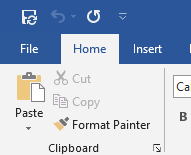
- Click "File" in the top left corner:
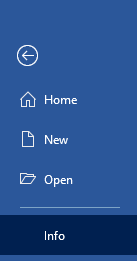
- Click the "Info" tab in the left blue menu (if not already on the "Info" tab):
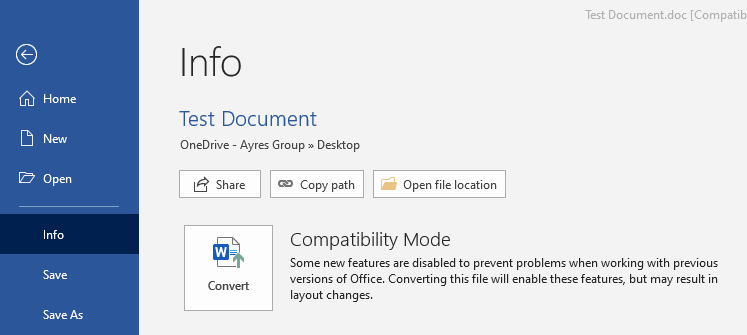
- Click the "Convert" button on the right side:
- You may receive a pop up. Click "OK":
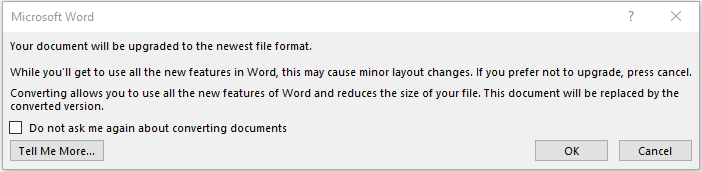
- The document will be saved as a ".DOCX" or ".XSLX" file. The original ".DOC" or ".XLS" file will be deleted.
Related Articles
Add a Shared Mailbox to Outlook 2016 or 2019
How do I add a shared mailbox to Outlook 2016 or 2019? Open Outlook Click “File” Click “+ Add Account” Type in the email address of the shared account: emailaddress@ayreshotels.com and click “Connect” Do not enter a password in next screen. Instead, ...Add an email to Outlook 2016 or 2019
How do I add a new email to Outlook 2016 or 2019? Open Outlook. Click the blue "File" button in the top left corner of the menu bar. Ensure you are on the "Info" tab on the left menu. Click the "+ Add Account" button on the right. Enter your email ...