Add a Shared Mailbox to Outlook 2016 or 2019
How do I add a shared mailbox to Outlook 2016 or 2019?
- Open Outlook
- Click “File”
- Click “+ Add Account”
- Type in the email address of the shared account: emailaddress@ayreshotels.com and click “Connect”
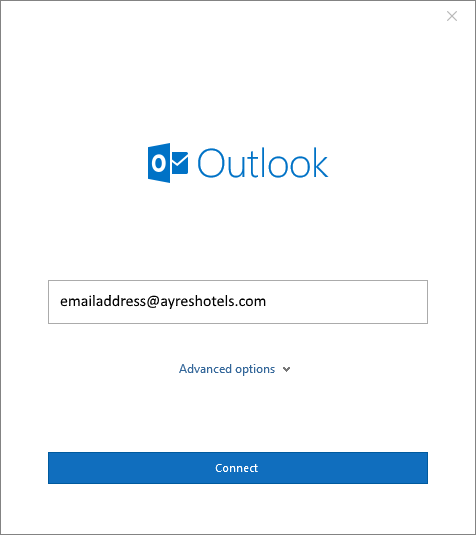
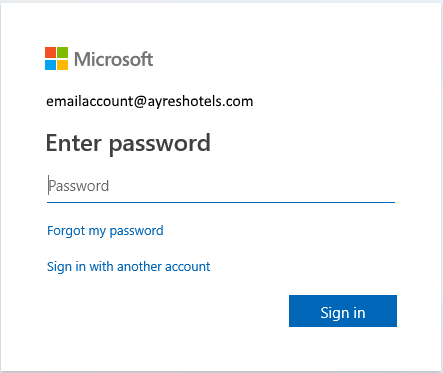
- Do not enter a password in next screen. Instead, click “Sign in with another account”
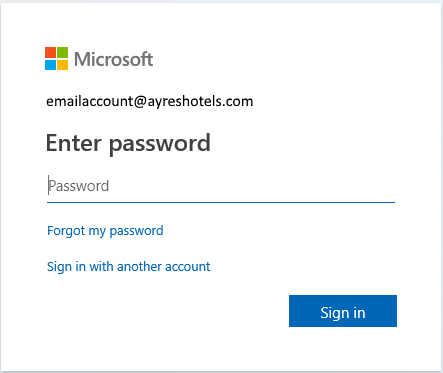
- Enter YOUR email address in the new window, and then click “Next”.
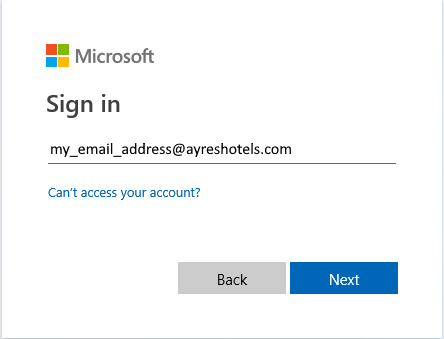
- Enter YOUR email password in the new window, and then click “Sign in”.
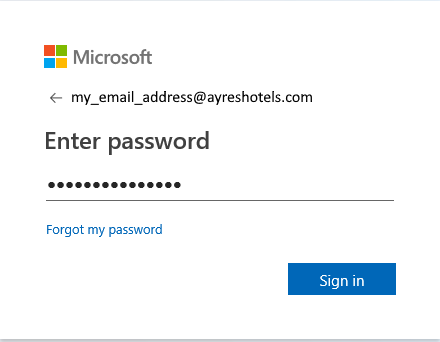
- You will be brought back to the “Enter Password” screen for the shared email. Click, again, “Sign in with another account”.
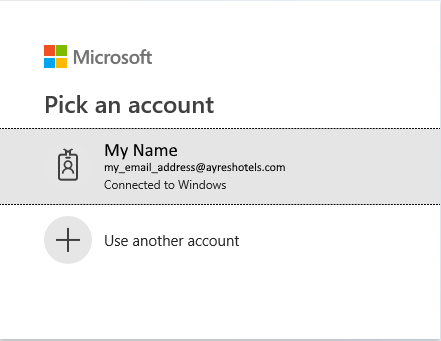
- You
will be given a list of all Microsoft Accounts setup on your current
computer (probably just one…your email account). Just Click It.
- Uncheck “Set Up Outlook Mobile on my phone, too”. And then click “Done”.
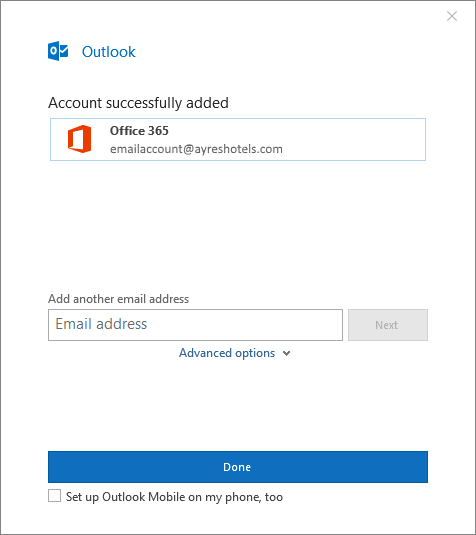
- The shared account has now been setup in your Outlook. But before you can access the account, you need to restart Outlook, so it can setup the Exchange account.
Related Articles
View a Shared Mailbox in Outlook on the Web
To view a shared mailbox in "Outlook on the Web" (website version of Outlook), please follow these instructions: Log into the Office365 Outlook website with your email address. You can access by visiting any of these links. They all go to the same ...Add an email to Outlook 2016 or 2019
How do I add a new email to Outlook 2016 or 2019? Open Outlook. Click the blue "File" button in the top left corner of the menu bar. Ensure you are on the "Info" tab on the left menu. Click the "+ Add Account" button on the right. Enter your email ...